
A contact form can look finished before its complete journey works. Its fields are tidy and the button is visible, but customers still need to understand the questions, send their requirements, recognize the result and receive follow-up from the right team. Pre-launch checks should follow that entire journey.
Use this guide with the website owner and the person receiving inquiries. Adapt the checks to the contact method in use. A form that stores data on a server has different receiving evidence from a brief that opens a WhatsApp conversation.
1. Define the completed result
Write one purpose statement, such as “a visitor can describe their requirements and the team receives a summary in the agreed inbox”. A button animation does not satisfy that purpose. Identify who tests the interface and who checks receipt, then use the same example.
For WhatsApp, check the destination number and summary contents. Visitors need to understand that they must still send the message within the application. Opening WhatsApp does not prove that a message was sent or read. For a server form, inspect the result in the actual destination system.
2. Prepare recognizable test data
Use a fictional business requirement with a testing marker and date. Prepare short and long names, a message with several lines, and characters customers commonly use, such as apostrophes and ampersands. Avoid real customer information during initial checks.
Record the device, test time and expected result. A recognizable message makes the sender’s screen and the inbox easier to match. When several people test, give them different markers so receiving staff know which attempt they are checking and do not treat it as a customer request.
3. Review labels and required information
Each field should explain the requested information. A label that stays visible helps users remember the question after typing. A disappearing placeholder may not be enough. The W3C WAI forms tutorial discusses labels, instructions and notifications that help users understand the workflow.
Identify required fields clearly and request information needed for the next step. If a phone number is required for a reply, explain its purpose. Help text should address real uncertainty rather than adding a lengthy sentence to every part of the form.
4. Try empty and incorrect input
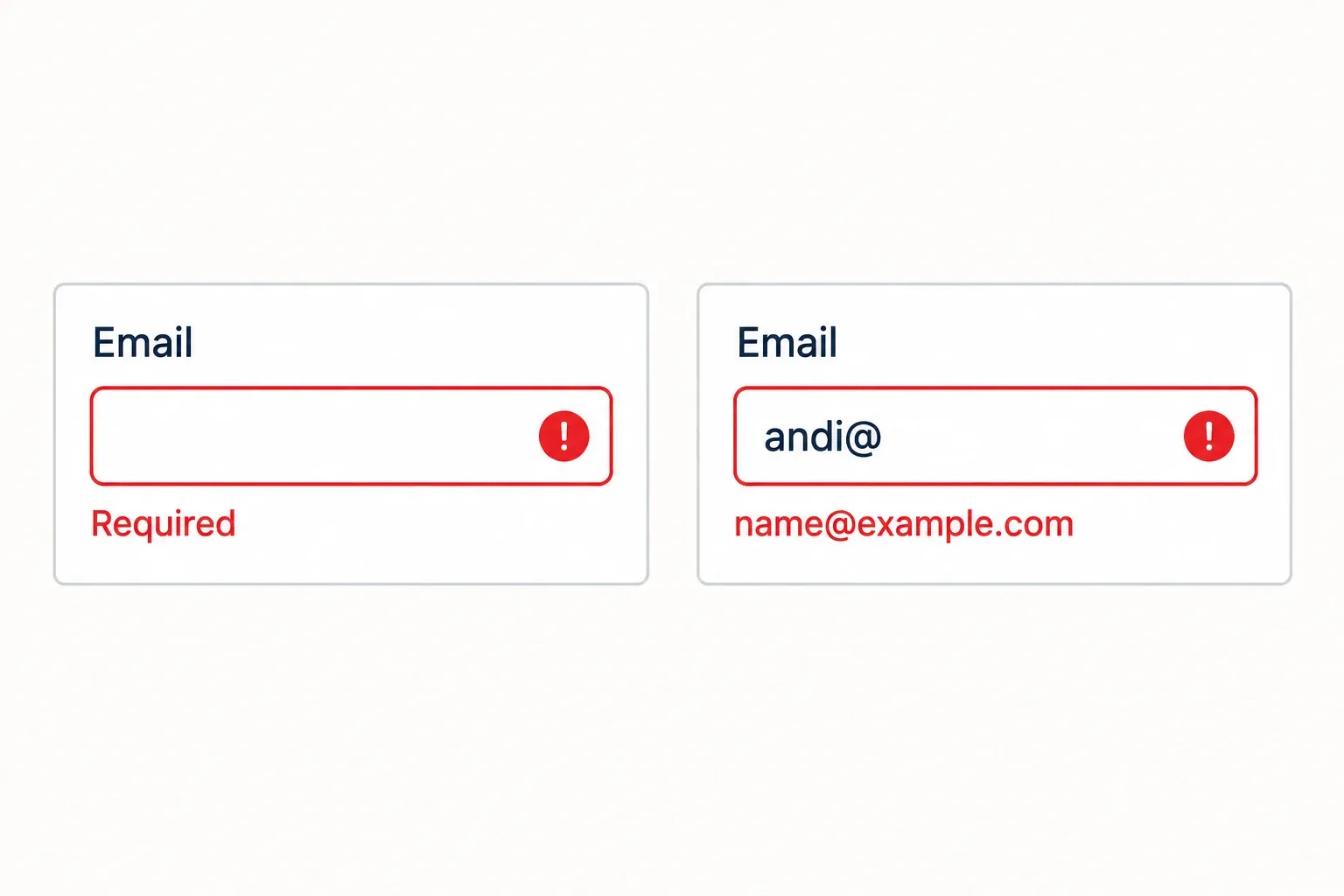
Submit without required fields, then try a contact format the website’s rules reject. An error should identify the field needing correction and offer an actionable instruction. Users should still see information already entered elsewhere.
Check what happens after correcting the error. An old message should not keep blocking a valid next step. If the rules accept several number formats, test the supported formats rather than drawing a conclusion from one example number. The accepted formats should follow the website’s agreed needs.
5. Use a phone and a keyboard
Open the form on a phone and complete it from beginning to end. Check whether the keyboard covers the button, help text is readable and a long message can be reviewed before sending. Try screen sizes or orientations relevant to the website’s users.
On a computer, move between fields with a keyboard. Focus should be visible and movement should follow the entry sequence. Test buttons, choices and any error messages. A good result on a wide display does not establish that the same journey is easy on another device.
6. Check sending, failure and retry
During submission, users need to know its status. Test a slow network or failure using a method prepared by the development team. The website should give an accurate result: the request was received, it failed, or another attempt is needed according to what actually happened.
Also check repeated button presses. The team needs to know whether one attempt produces one request or several copies. Do not promise duplicate prevention merely because a button appears disabled. Compare receiving results and define an available retry step that does not cause users to lose their message.
7. Match the result with receiving staff
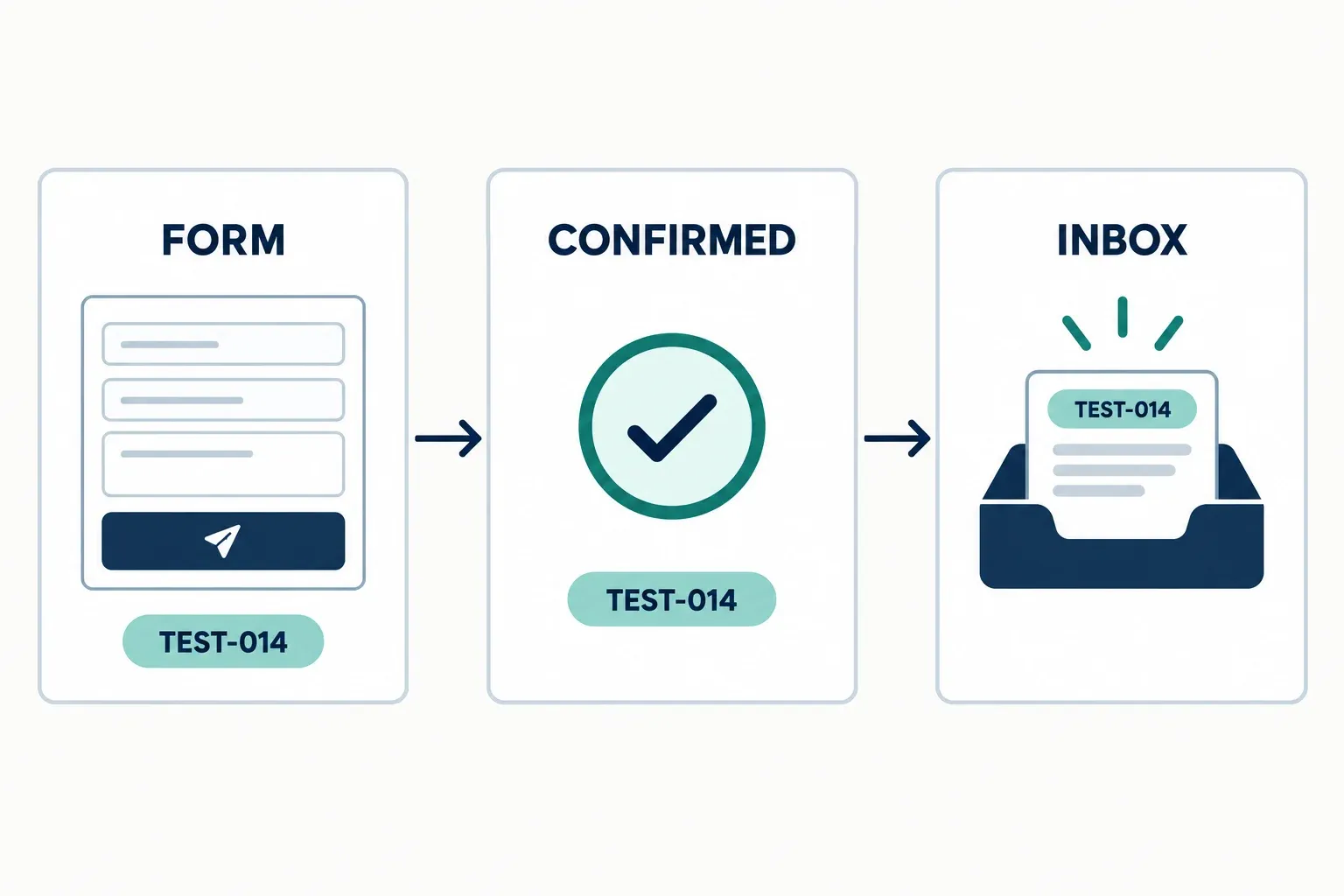
In a fictional example, a tester sends a catalog website requirement from a phone. The recipient checks whether the service selection, test contact and multiline message arrive with the same meaning. If the summary changes or lines disappear, record the difference, device and time.
Identify who follows up as well. An inbox that successfully receives messages but is not read does not complete the business process. Agree how staff recognize new inquiries and transfer requests to the appropriate person without stating a response time that has not been established.
8. Retain a record before approving launch
Keep a short list of scenarios, expected results, actual results and next actions. Distinguish resolved issues from those still pending. After a fix, repeat the failed case and any parts of the journey affected by the change. For a bilingual website, check labels, messages and contact destinations in both languages.
WebsiteKilat uses a brief that prepares WhatsApp contact in the relevant journey. Describe requirements for a server form or another receiving process in the website brief so the scope can be discussed early. Explore WebsiteKilat services to select a website format, then use the test record when reviewing the result.


