
Use a Google Maps directions link when contact page visitors mainly need to set off for your address. Add an embedded map when seeing the building, entrance or surrounding streets helps them understand the destination before navigating. In either case, write a copyable address and arrival instructions people can read without opening a map app.
Start with the place people actually visit
A building can share its name with the larger complex, while the visitor entrance sits on a different street. Write the venue name, address, floor or unit, and how to find the right door. Inside a shopping centre, a line such as “use the east lobby and go upstairs to level two” can be more useful than a pin alone.
Check that the published address serves the purpose of the page. One address might accept mail while another handles order pickup. If you list both, label them for the visitor’s activity. A button under “Collect your order” should lead to the pickup point, especially when visitors need a different gate.
When visits require an appointment, put that detail beside the address so people know whether to contact the team first. If opening hours also appear elsewhere, use wording that agrees across both pages. Guide to opening hours on your website
Choose the map format for the visitor’s decision
An “Open directions in Google Maps” link can be enough when the address is clear and the page aims to help the visitor take one action. Google Maps documents URLs that open directions to a specified destination. If the origin is omitted, the app can use an available location or prompt the visitor to enter one. Maps URLs guide
An embed provides context without leaving the page. Position it near arrival notes when visitors need to recognise two gates, a parking area, or the relationship between the destination and a main road. Google Maps documents place and directions modes for embedded maps. Select the view that supports the same decision as the instructions, then offer a directions link so visitors can continue on their device. Maps Embed guide
When a business has several locations, provide a separate link for each and name the branch in the text that opens directions. A single generic button at the foot of the page can send a reader to a different branch. If an activity takes place at a different venue on certain dates, put the date and destination in that activity’s own entry.
Check the destination opened by the link
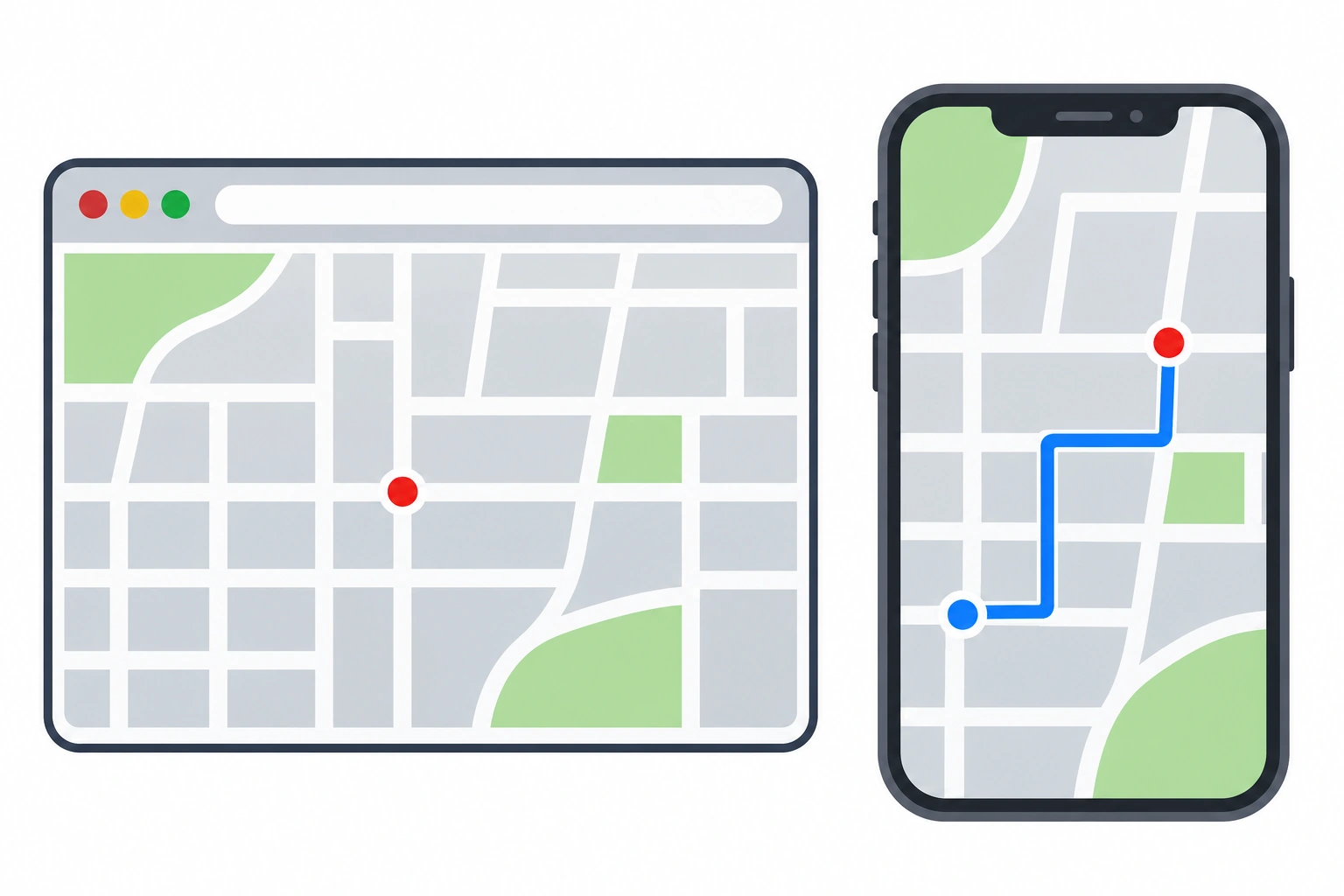
Open the link as a visitor and read the destination the app displays. Zoom in where needed to see the pin relative to the entrance. Try a phone and a desktop. Notice whether readers land on the intended location or have to choose between several places with similar names. If the result is ambiguous, use a more specific place identifier as supported by Maps.
Check what people can do before navigation is available. Ask someone to copy the address from the page and paste it into their preferred map app. If they find the right building but cannot choose a door, add a single clue tied to a lasting landmark. A lobby name or access road will generally remain helpful longer than the colour of a vehicle that is occasionally parked out front.
On a page with an embedded map, make the address and directions link easy to locate. Someone using a weak connection should be able to grab the necessary information while the map loads. Use an action label that describes the result. “View the location pin” and “Open directions to the east lobby” set different expectations.
Keep one reference for changes to the location
For a weekend-only entrance, check that visitors read the hours and directions together. Note who will remove the notice when the main entrance reopens, including when the route was shared in an automated message.
Record the location name, complete address, pin, entrance, parking notes and directions link in a place your team can update. When you move units or change visitor access, update the text and link on the contact page and wherever else the address has been shared. Date temporary changes so readers can see when the usual instructions apply again.
When adding location guidance with WebsiteKilat, bring a journey that confused a visitor and one that went smoothly. Identify the detail that made the difference, such as the gate name or the pin on the right side of the road. Keep that detail near the address and select an embed or link according to how visitors find it.
Before putting the page to use, ask a colleague who has never visited to name three things from their phone. They should be able to say which building they need, which entrance to use and how to start the journey. If they get all three from the page without help, your contact page provides directions they can follow.


