
A website WhatsApp link starts with two practical decisions: which number should receive the enquiry, and what conversation should the button help start? A tidy button is still unhelpful if it points to an old number or prepares a confusing message. Check the destination and message before repeating the link across the website.
Click to chat opens a conversation without requiring the visitor to save the number first. A prefilled message can appear in the composer, but the visitor still decides whether to send it. The button label should describe that actual action, such as “Ask us on WhatsApp”.
Start with the official number in international format
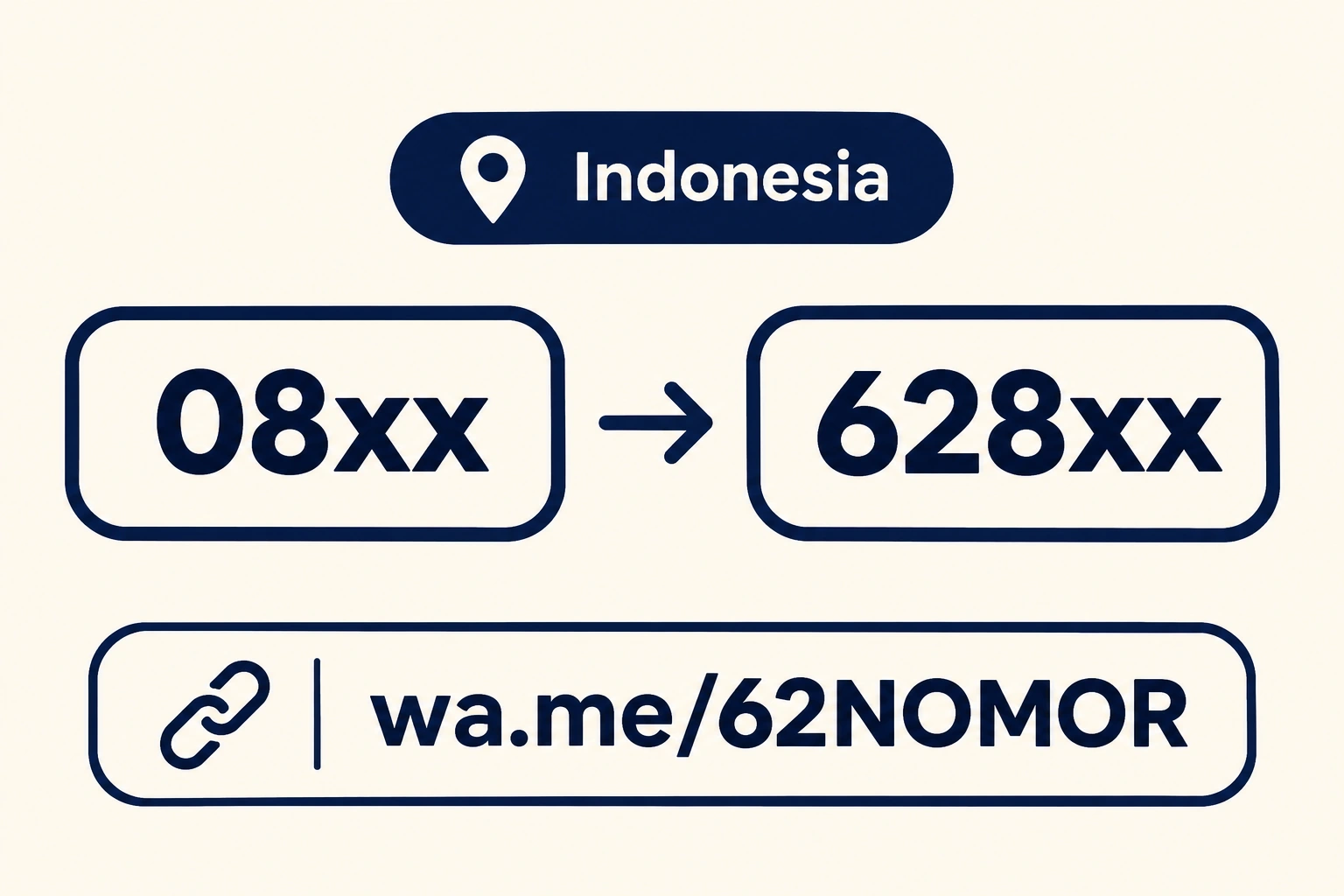
The official WhatsApp click-to-chat instructions use the full international phone number, without a plus sign, brackets or hyphens in the number path. For an Indonesian mobile number written locally with an 08 prefix, the international pattern starts with 628, followed by the same remaining digits.
The pattern wa.me/62NOMOR is a placeholder. Replace its number section with the official digits confirmed by the business owner; do not copy placeholder letters into a production button. Do not add the country code while retaining the initial local zero. Compare the result with the number the receiving team actually uses.
Record who owns that contact and when it was last checked. If a website has several branches or departments, decide whether each button should reach a central service desk or a specific team. A button labelled for a branch should reach that branch rather than whichever number was easiest to find.
Write a message that helps start the conversation
Choose a short sentence suited to the originating page. On a website-service page, “Hello, I would like to ask about your website services” provides useful initial context. The visitor can add requirements, timing or their own question before sending it.
Keep personal information, a particular customer’s order number and confidential details out of a public link. URL parameters can be visible when a link is shared or recorded by devices and services handling it. A general message is more suitable for a button available to every visitor.
Avoid wording that suggests the visitor has already agreed to an order or charge. An enquiry button should prepare an enquiry. Where product context helps, use a clear category name and leave room for the visitor to correct or expand it.
Encode the message rather than the whole address
The message belongs in the text parameter. Spaces and special characters need appropriate encoding so they do not change the URL structure. MDN’s encodeURIComponent documentation explains the function developers can use to encode the content of one URL component.
An example short message component is:
Halo%2C%20saya%20ingin%20bertanya
It reads as “Halo, saya ingin bertanya”, meaning “Hello, I would like to ask”. The developer combines the verified number and encoded message component using the official link pattern. The complete address, including its structural separators, does not need to become one encoded text value.
Check the result if a message contains an ampersand, a line break or characters outside the Latin alphabet. Encoding twice can leave codes such as %20 visible in the message itself. The useful check is what appears in the composer, rather than whether the URL merely looks plausible inside the website editor.
Test the message up to the draft stage
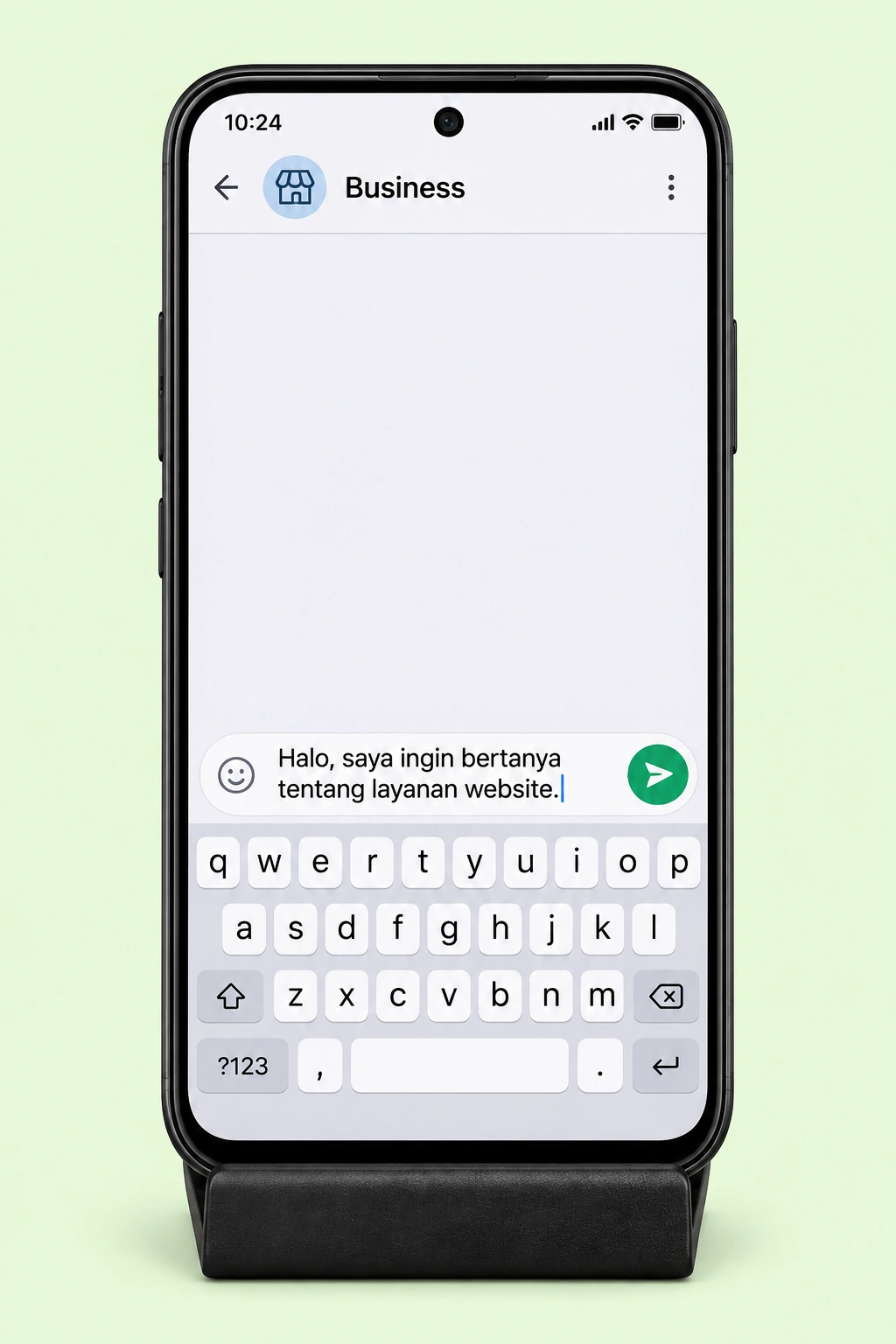
Open the button from the page customers will use. Check the destination number or profile, the message content and whether the appropriate application or web view opens. Stop at the draft for routine checks; opening a link does not require repeatedly sending test messages to the service team.
Try a phone and a computer that represent customer use. Login state and installed applications can produce different opening steps. A login request on one device does not by itself mean the link is broken, but visitors should still understand how to continue.
Also check the label, clickable area and relationship between destination and page. If a contact form is offered as an alternative, the contact-form testing guide helps keep both enquiry routes usable.
If the destination is wrong, return to the number source before changing the button design. If the destination is correct but the message is garbled, inspect parameter encoding. If the text is readable but irrelevant to the page’s service, revise its wording. Separating these checks directs corrections toward the actual problem. Keep a brief result for each button location so the next check has something to compare against.
Maintain one consistent contact source
Manage the service number and message pattern consistently, especially where buttons appear in the header, product pages and footer. A list of those locations helps the team update every instance when a contact changes.
For a WebsiteKilat brief, supply the official number, responsible contact, button label, intended pages and proposed message. Approved wording and a draft-stage test provide a clear basis before customers begin using it. Repeat the check whenever the number, service or enquiry-handling route changes.


